
How it works · No app install
From microphone
to every language.
Create a session, share a link, and start the mic: your audience reads live captions on their phone or on the sanctuary screen, each in the language they choose.
Three roles
One session, three simple parts
You don't need separate apps or accounts for attendees. Each role opens a link in the browser.
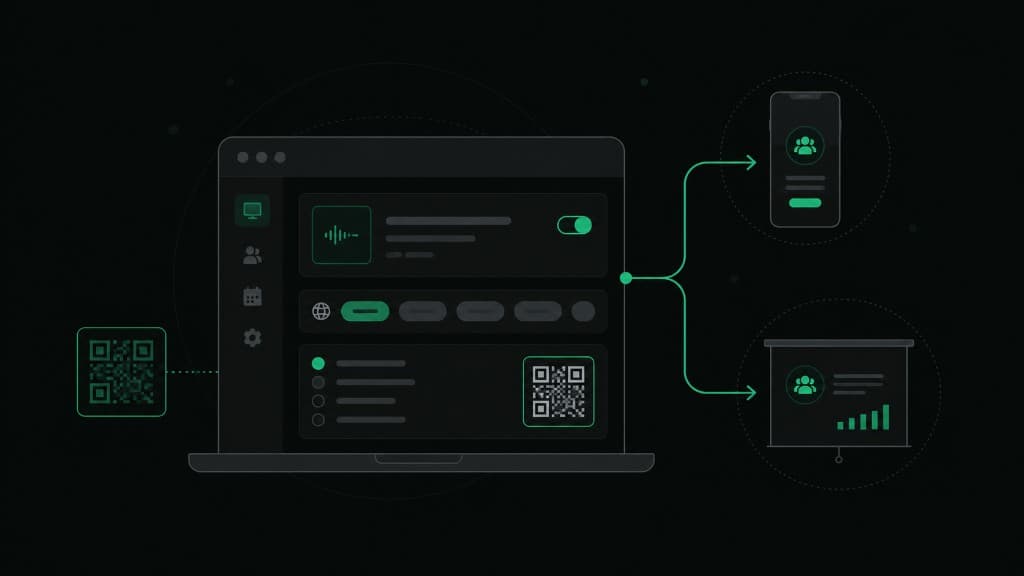
Creates the session, picks languages, and shares attendee and display links: no app install for anyone.
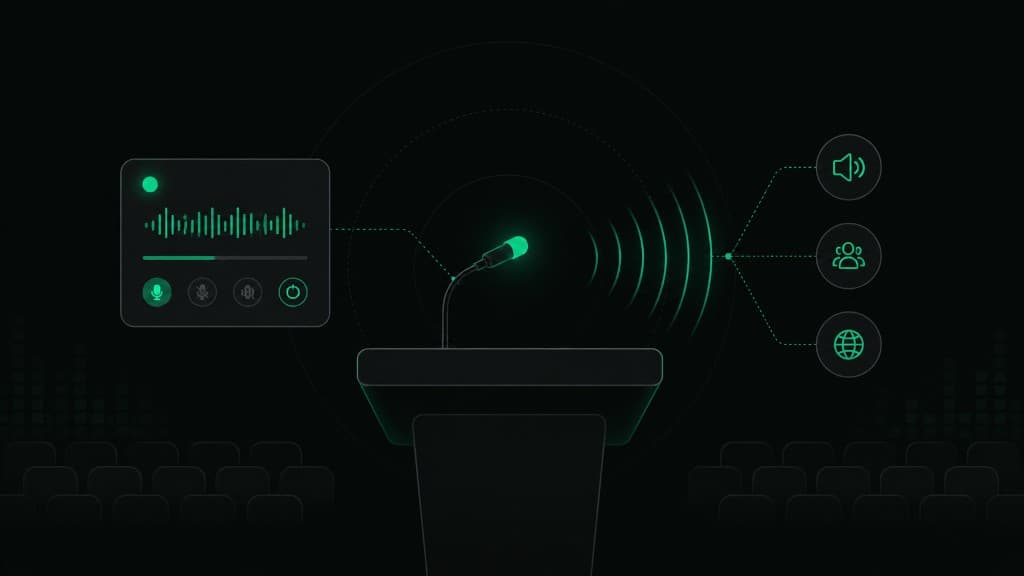
Opens the speaker dashboard, selects a microphone, and starts live capture when the service or event begins.
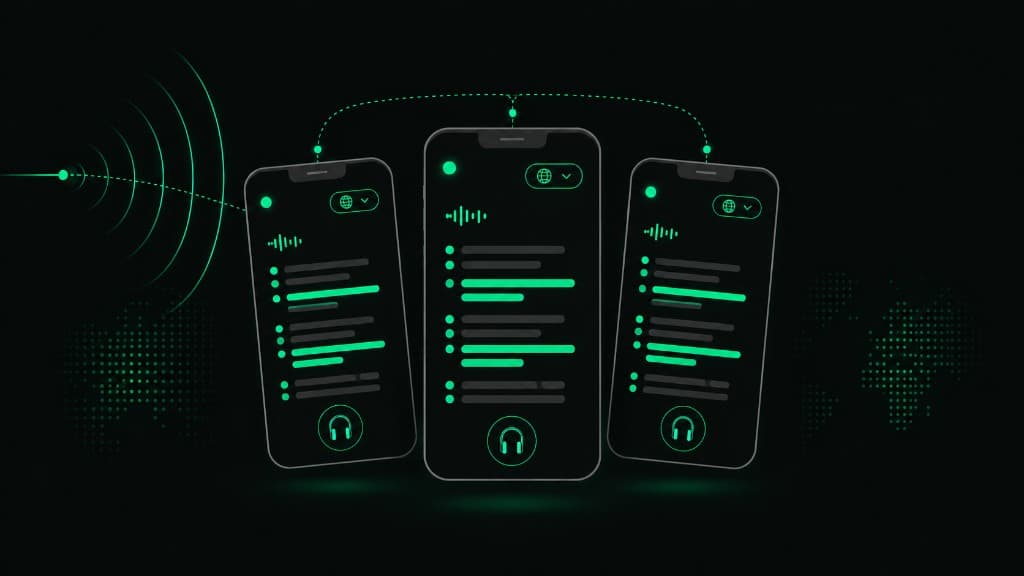
Scans a link or QR code on their phone, picks a reading language, and follows captions as the speaker talks.
Your first event
From setup to live captions in four steps
Most teams are ready in a few minutes. Run a short test before the room fills up.
- 01
Create a session
Pick the spoken language and the languages your audience will read.
From your dashboard, name the event and choose one spoken language plus one or more translation languages: for example English spoken with Korean and Spanish captions.
- 02
Share the links
Send attendees a phone link and put the display link on your projector.
Each session gets its own attendee URL and display URL. Share the QR code in the bulletin, on screen, or in chat: attendees only need a browser.
- 03
Go live from the speaker view
Start the microphone when you're ready to begin.
The speaker dashboard shows live recognition, confidence, and the languages broadcasting. Stop the mic when the session ends.
- 04
Everyone reads in their language
Captions update live on phones and on the sanctuary screen.
Attendees follow a live caption feed: newest lines at the top, scroll down for earlier text. The display view can show several languages side by side, with toggles to hide columns if needed.
What people see
Phone for members, columns for the room
Use both views in the same session: they follow the same live caption feed.
One language, full screen
Each person chooses their reading language once and follows a scrolling caption feed: ideal for members in the congregation.
Welcome everyone. Today we gather as one community.
Let us open with a moment of prayer together.
Sunday Service
Live now
Powered by LABA LIVE
Several languages at once
Show multiple translation columns on a sanctuary screen or stage monitor. Hide languages viewers don't need.
Sunday Service
LiveEnglish
Welcome everyone. Today we gather as one community.
한국어
환영합니다. 오늘 우리는 하나의 공동체로 모였습니다.
Español
Bienvenidos: hoy nos reunimos como una sola comunidad.
Phone and projector views stay in sync over the live feed. On some mobile networks, captions may briefly use a backup sync path.
Better captions
For clearer captions on the day
Most quality issues come from audio and setup: not the translation engine.
- Pick the correct spoken (source) language
- Use a wired or headset mic when possible
- Test links before the room fills up
Need mic setup, vocabulary tips, or billing details?
Read the guideHave an upcoming multilingual service?
Create a free account and run your first session when you’re ready.